Documentation
Learn where the main tools are and how to use them in a research project.
On this page
Create your first project
Start with a blank project, upload a LaTeX source ZIP, or choose a template. On the project page, open New project to see the available creation and import options.
A project connects source files to a compiled document
main.texchapters/introduction.texreferences.bibfigures/result.pdf- Choose the main .tex file and compiler in project settings. Chinese documents commonly need a suitable Chinese template and XeLaTeX or LuaLaTeX.
- Use Code or Visual to edit. Compile to produce a PDF, or switch to Live Preview while writing. Live Preview is free on every plan.
Work in the three-pane editor
Open a file or jump to a section on the left, edit the LaTeX document in the center, and check the typeset pages on the right. Code, Visual, and Wordex all edit the same source file.
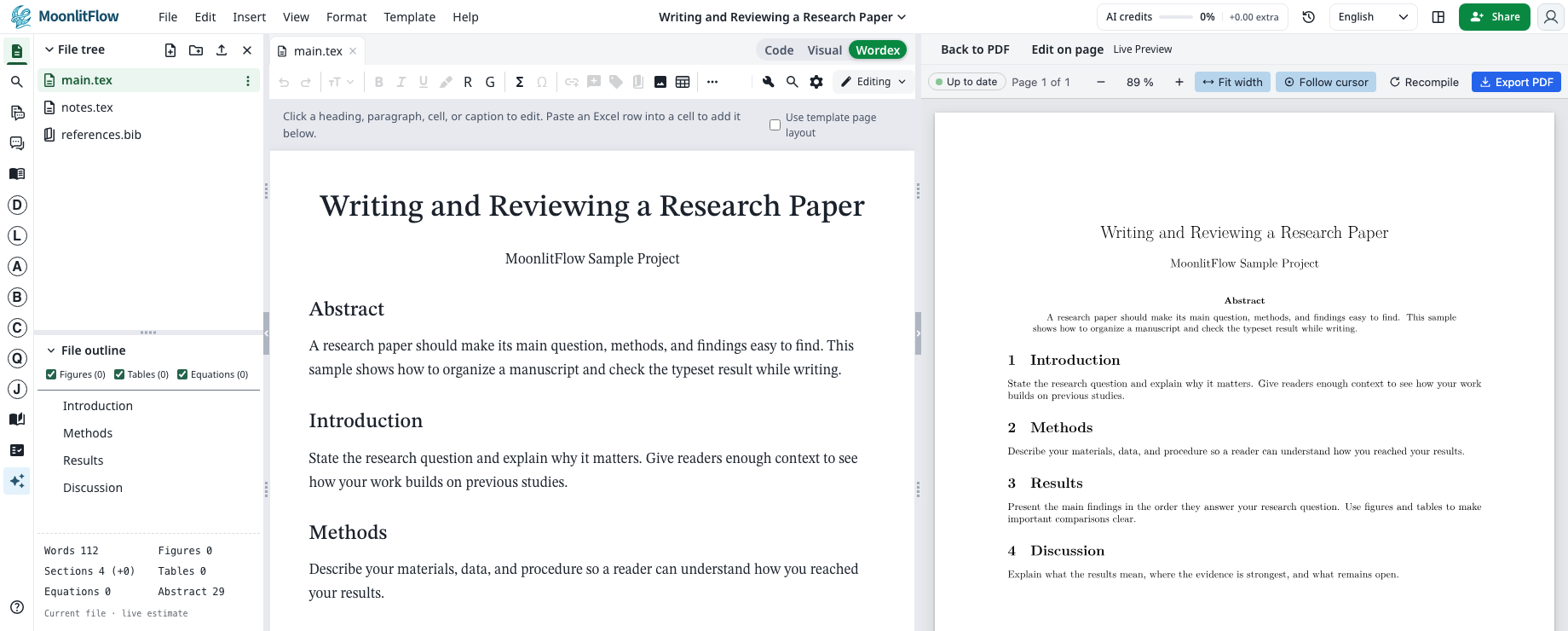
- 1Left toolbar
Open project files, search, review, chat, the reference library, and writing tools.
- 2File tree and outline
Select a source file, then use its outline to jump to headings, figures, tables, or equations.
- 3Editor toolbar
Format text, insert equations and citations, or open search and settings. The tools vary by editor mode.
- 4Code, Visual, and Wordex
Use Code to edit LaTeX commands directly, Visual to edit LaTeX in a rich-text view, or Wordex to work on a formatted page like a word processor.
- 5Document editor
Write and revise the file open in the active tab. Switch modes as you move between drafting and adjusting LaTeX.
- 6Live Preview and PDF
Check the typeset pages as you work. When available, use Edit on page to revise supported content in the preview. Switch back to PDF to review the compiled document.
Use the AI toolbar
L researches literature and drafts introductions; A optimizes abstracts; C cleans source; Q inspects submission quality; R recommends references; G checks grammar. Source cleanup with C does not need an AI call.
Choose a tool by the job you want to do
- Select relevant text when a tool works on a sentence or paragraph. Check the scope shown in its window.
- AI features require account access, a configured provider, and available credits. Review outputs before applying them.
Work with coauthors
Use Share to invite collaborators with the appropriate permissions. Add comments for discussion and use Reviewing mode when you want edits to become suggestions. Version history helps you inspect earlier changes.
Share → discuss → review → compile
Project sync and reference managers
Open Account Settings to see which integrations your MoonlitFlow workspace has enabled.
- Select Connect beside Dropbox or GitHub and approve the connection with the provider. Open your project to configure its sync options.
- Select Connect beside Zotero or Mendeley when available. For ReadCube or another reference manager, export a BibTeX file and import it into your reference library.